How to Subscribe to a Paid Plan Online
Online Subscription Process
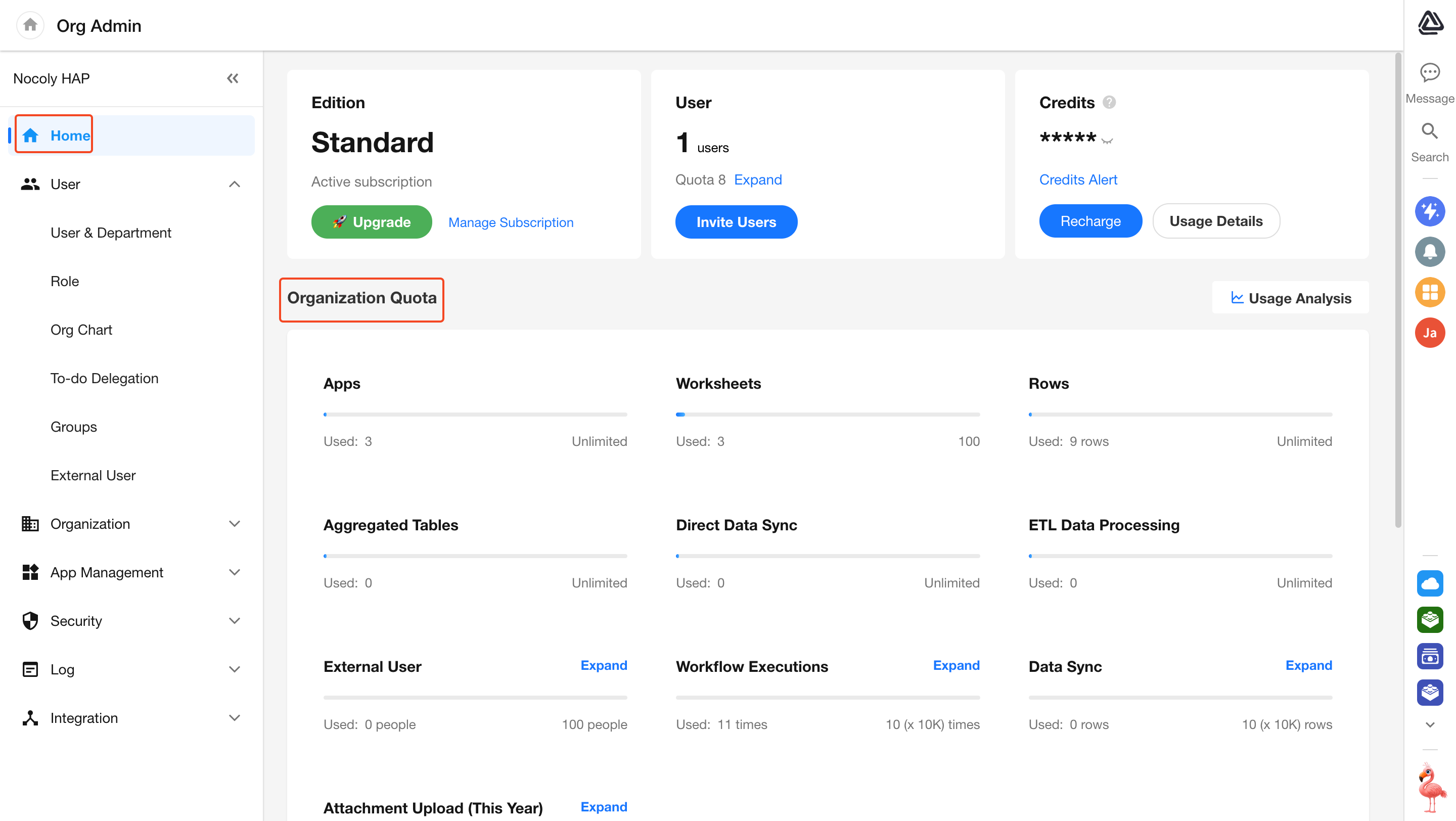
As an organization admin, log in to HAP on your desktop, click your profile avatar, and navigate to [Org Admin] > [Home]. Then click the "Upgrade" button.
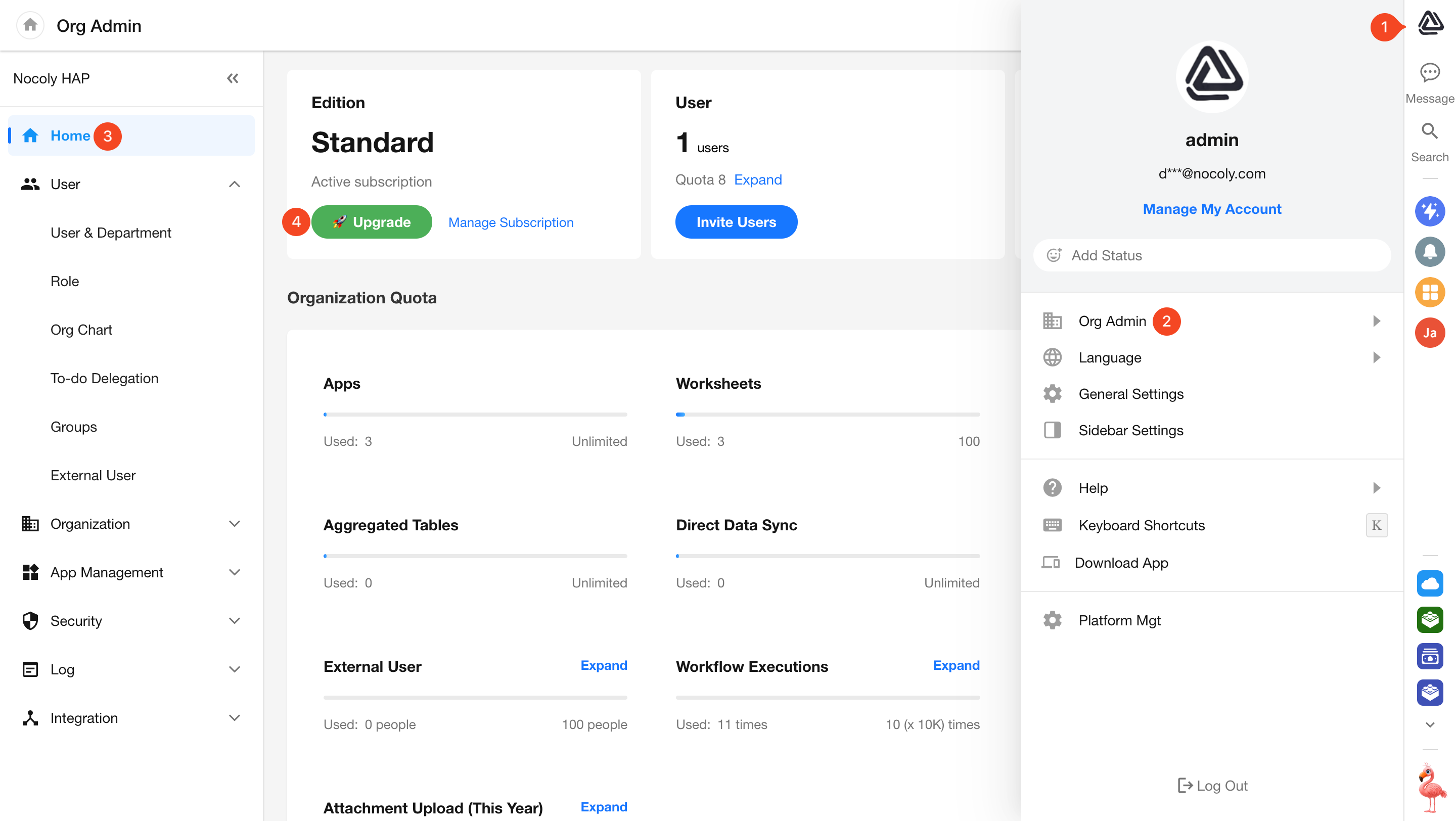
Select the desired plan and billing cycle, and click "Upgrade".

You'll be redirected to the payment page, where you can configure the number of seats to purchase. Complete the online payment to activate the subscription immediately. Upon successful payment, you will receive a system notification confirming the license activation.
Offline Purchase Option
In addition to online purchase, you can choose to work with a certified partner or contact your dedicated sales representative to activate your subscription via offline payment.
⚠️ Note: Online and offline purchase records are not synchronized.
Organizations with offline payment records cannot purchase nocoly-related services online. When such organizations click "Upgrade" or "Recharge" button, a prompt will appear instructing them to contact their sales representative.
Auto-Renewal Service
To ensure uninterrupted access to your services, the subscription will auto-renew at the end of each billing cycle. The renewal fee will be automatically charged to your default payment method, with no manual action required.
Please make sure your payment information is up to date to avoid any renewal failures.
-
To update your default payment method, go to Subscription Management.
-
To disable auto-renewal, you can cancel it anytime in Subscription Management.
After cancellation, your current subscription will remain active until the end of the billing period.
Subscription Management
The Subscription Management module helps users flexibly update or cancel their HAP subscription, view and download billing records, update payment information, and manage account details. This ensures the subscription aligns with user's business needs and billing remains accurate.
Accessing Subscription Management
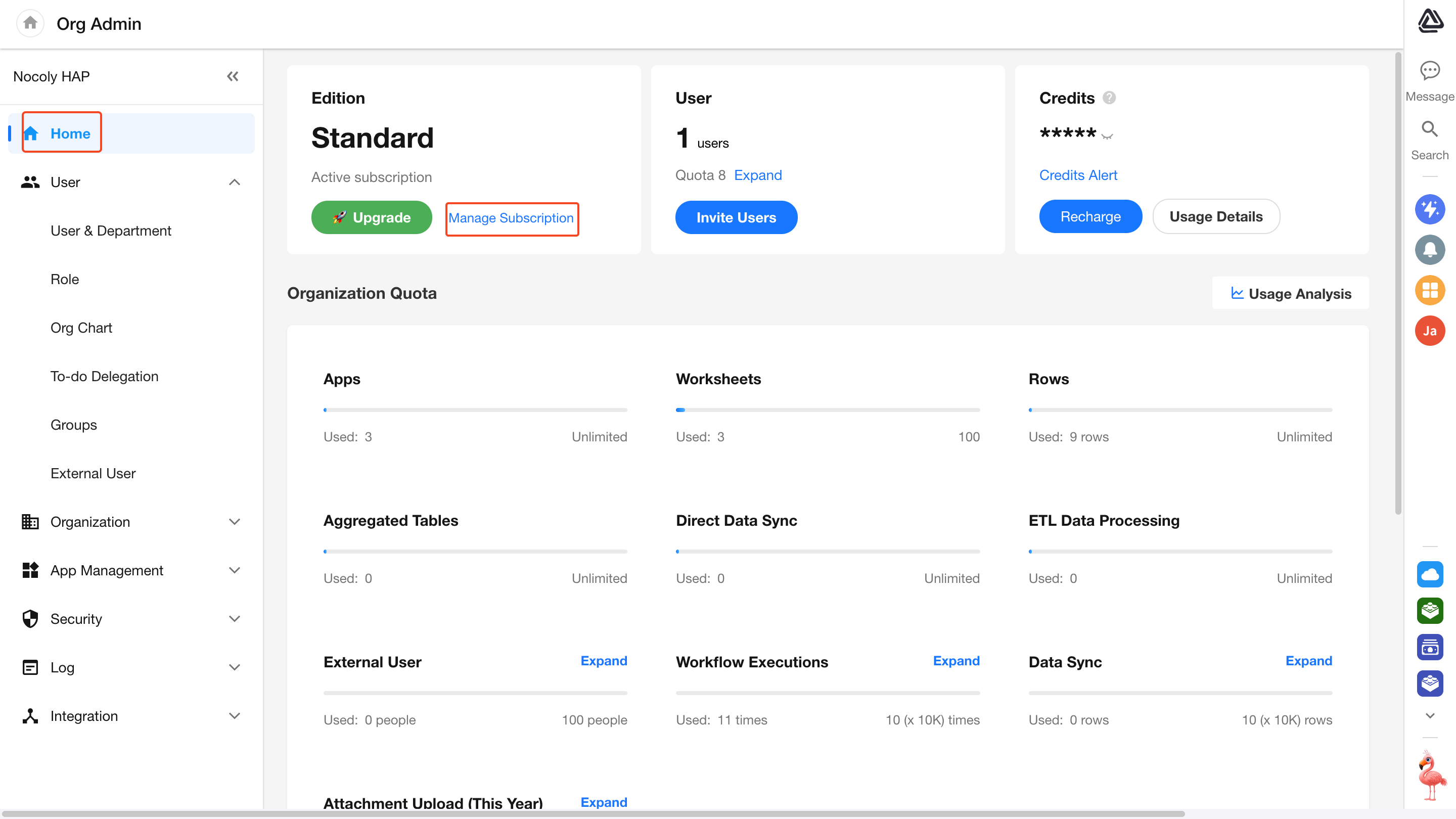
For organizations on a paid plan, organization admins can access this module by clicking the profile avatar and navigating to [Org Admin] > [Home] > [Manage Subscription].
Update or Cancel Subscription
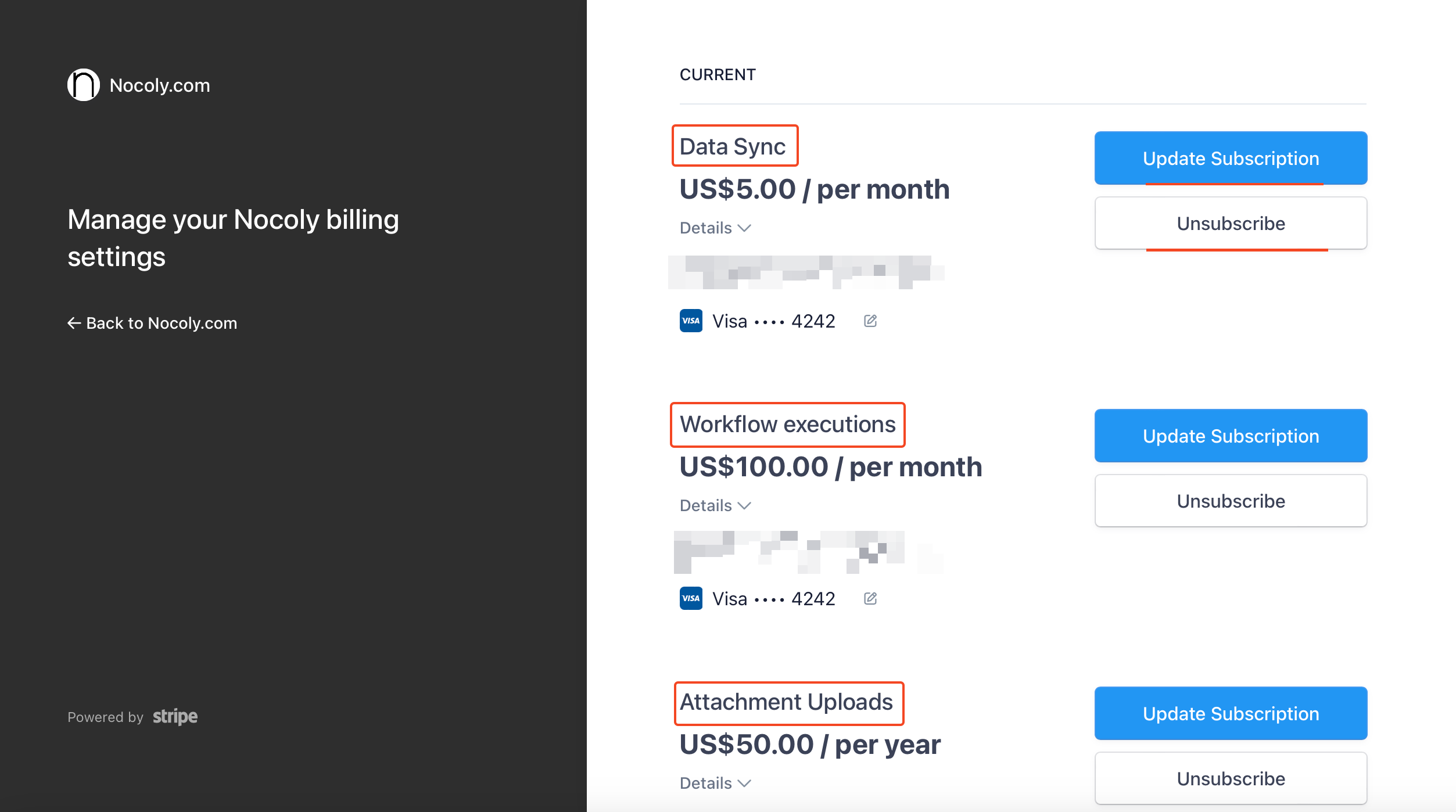
On the subscription management page, you can cancel any subscription at any time by clicking "Cancel Subscription". This stops auto-renewal, but your current subscription will remain active until the end of the billing period.
To adjust your subscription based on your evolving business needs, click "Update Subscription" to modify the quantity of any of the following four add-on packs:
- External User Pack
- Attachment Uploads Pack
- Workflow Executions Pack
- Data Sync Pack
The system will automatically calculate and update your billing. If you change the subscription quantity mid-cycle, the system will prorate the charges.
Once payment is confirmed, the update takes effect immediately, and a system notification will confirm the change.
View Billing Records
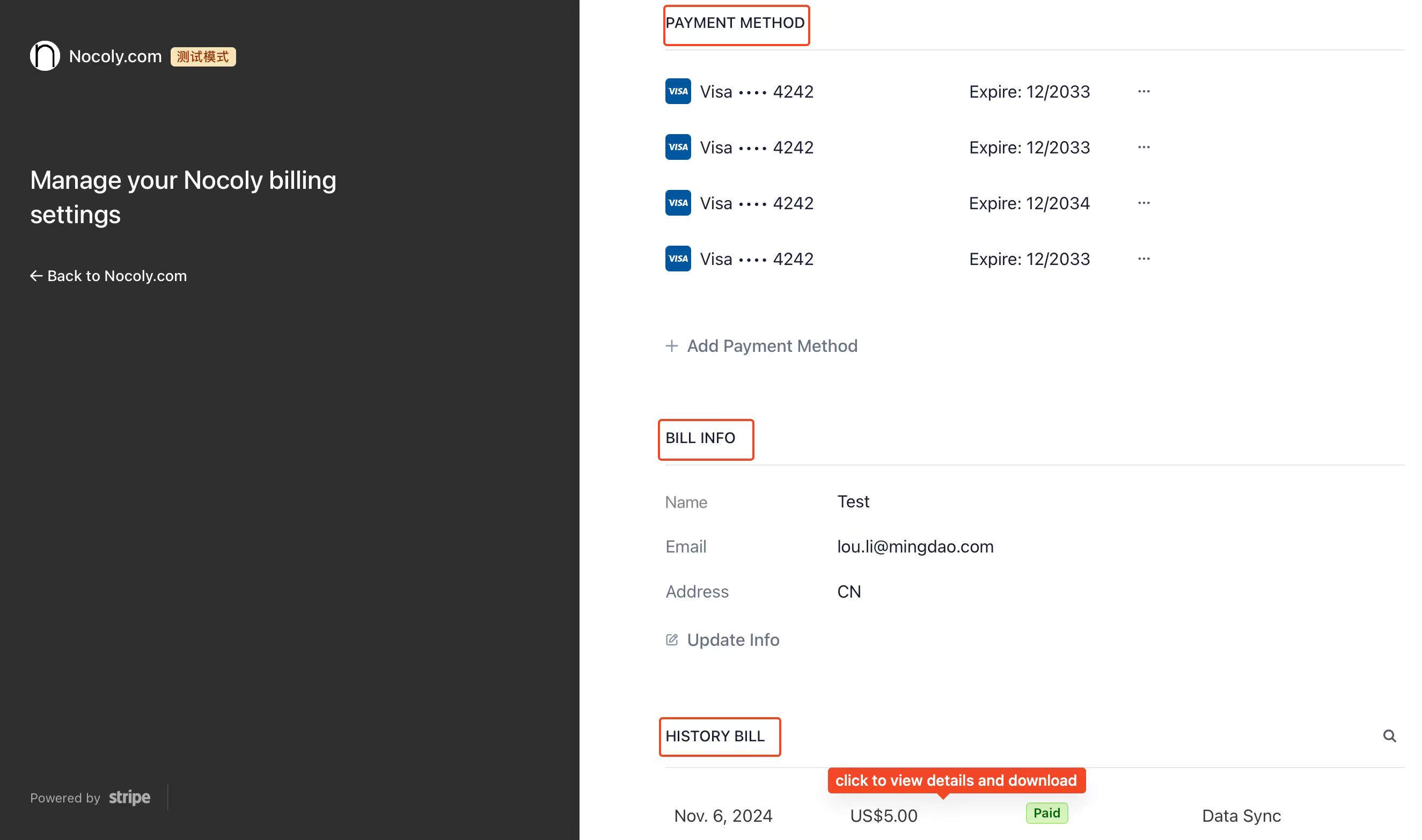
You can access your full billing history at any time:
- Active Bills: View currently active invoices.
- Paid Bills: Review past payment history.
- Download Invoices: All invoices are available as downloadable PDFs for your records and compliance needs.
Update Payment Information
To avoid any disruption in service, ensure your payment information is up to date:
- Change Payment Method: Update your credit card or add a new payment option.
- Add Backup Payment Method: Set a fallback in case your primary method fails.
How to Recharge Your Credits Balance Online
Your balance can be used to purchase user add-on packs or offset the usage fees of SMS and email services.
Note: The free plan does not support recharging balance.
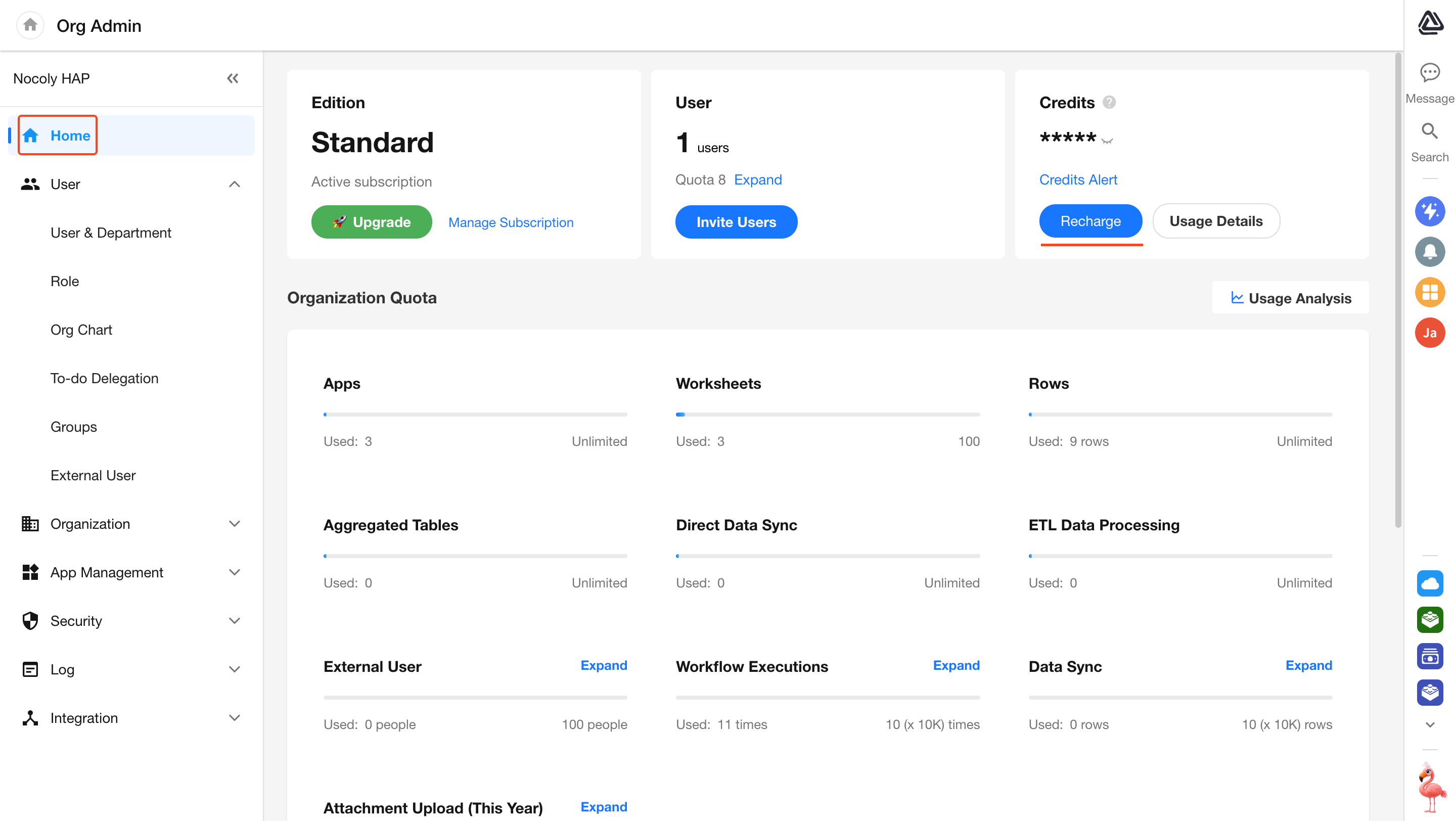
Organization admins can click the profile avatar, then navigate to [Org Admin] > [Home], and click the "Recharge" button. You will be redirected to the payment page to complete the online payment. The balance will take effect immediately after successful payment.
How to Increase the Number of Seats
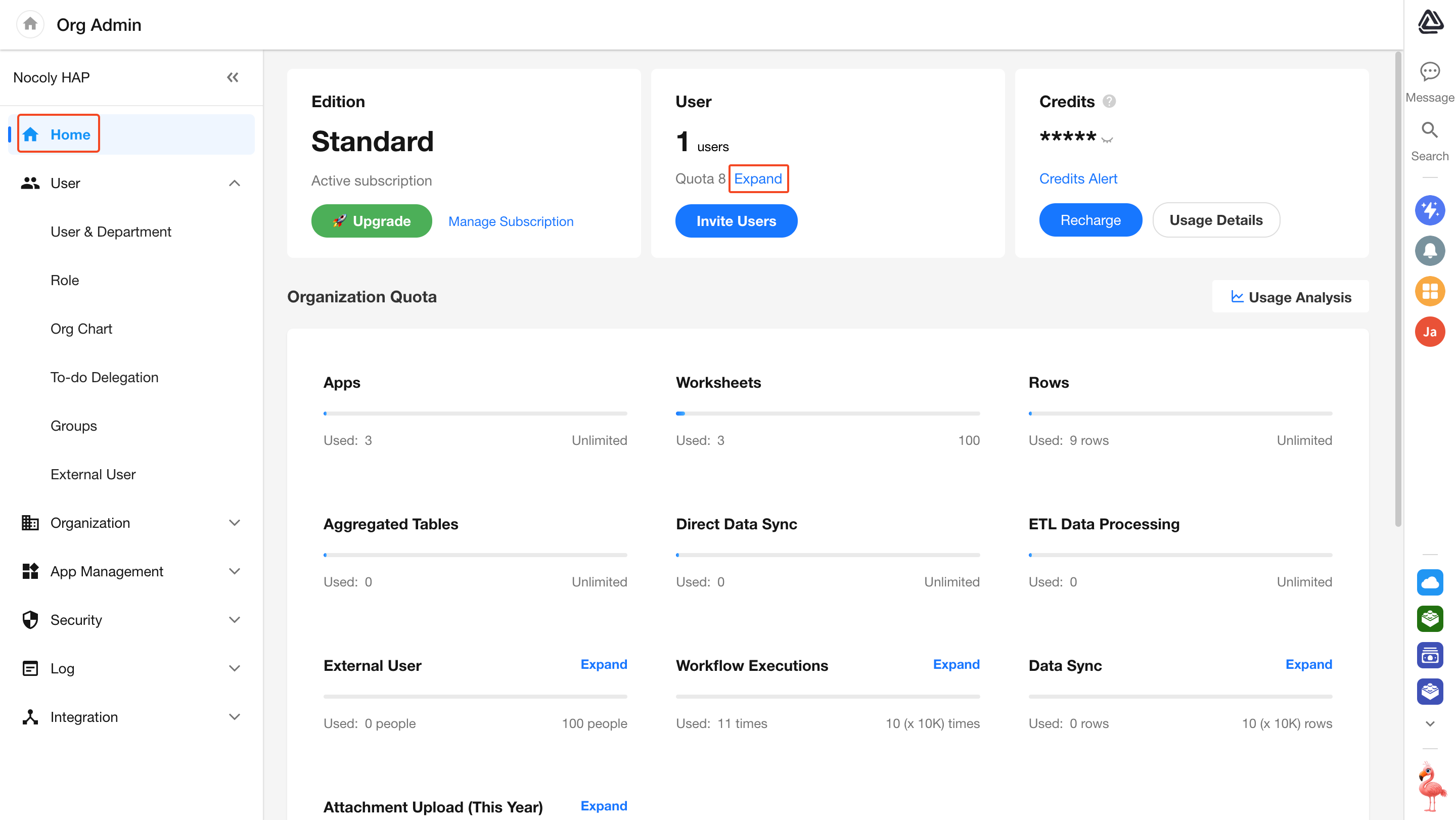
Organization admins can click the profile avatar, then go to [Org Admin] > [Home], and click the "Expand" button. Set the number of seats to the desired value.
Note: The free plan supports a maximum of 10 users and does not allow seat expansion.
How to Purchase External User Packs
The paid plan includes 100 external user seats by default. If you need more, you must purchase additional external user packs.
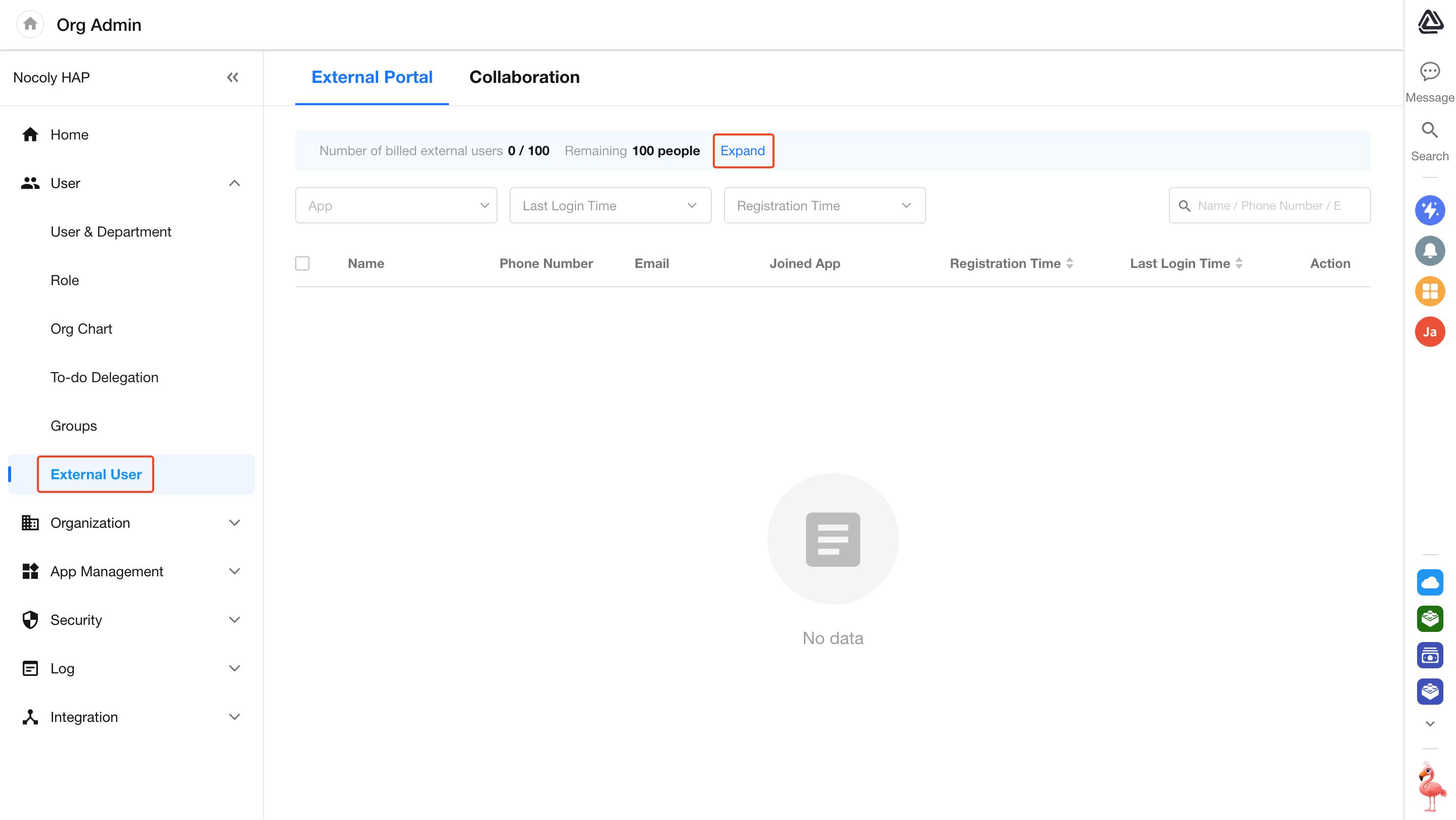
Organization admins can click the profile avatar, then navigate to [Org Admin] > [User] > [External User], and click the "Expand" button to purchase.
External user packs are not available in the free or trial plans. The "Expand" and "Renew" buttons will only appear after your organization subscribes to a paid plan.
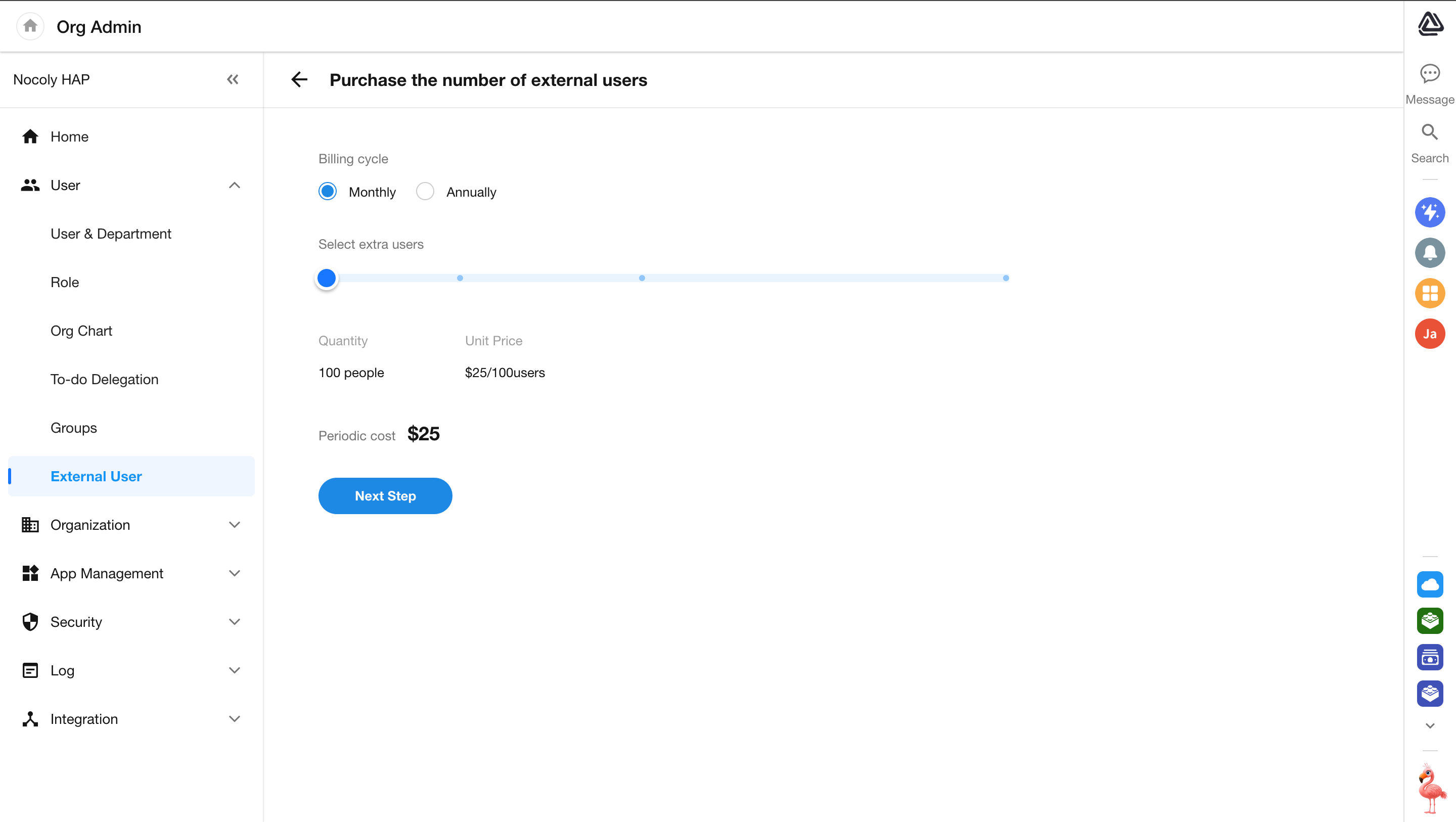
External user packs are available via monthly or annual subscriptions. When making your first purchase, select a subscription period and the number of users, then click "Next" to proceed to the payment page. Complete the payment online and the purchase will take effect immediately. A system message will confirm the subscription.
- Only active users consume seats. Users with statuses like Pending Review, Pending Activation, Disabled, or Deleted do not.
- If a user registers and joins two applications, they count as 2 users.
How to Purchase Data Sync / Workflow Executions / Attachment Uploads Packs
For organizations on a paid plan, the organization admin can click the profile avatar, then go to [Org Admin] > [Home]. Under the "Organization Quota" section, locate the module you want to expand and click the "Expand" button.
Was this document helpful?