Control Events
When creating or editing records on the record detail page, you can configure control events to enable custom interactions.
When a user interacts with a field and defined conditions are met, the system can automatically execute configured actions—such as displaying a message or calling an integrated API.
The record detail page refers to:
- The record creation page opened via the “Create Record” button
- The record detail page opened by clicking an existing record
Control events are not available when editing records in views (including bulk edit), and do not take effect during data import or when records are created via workflows.
Scenario Example
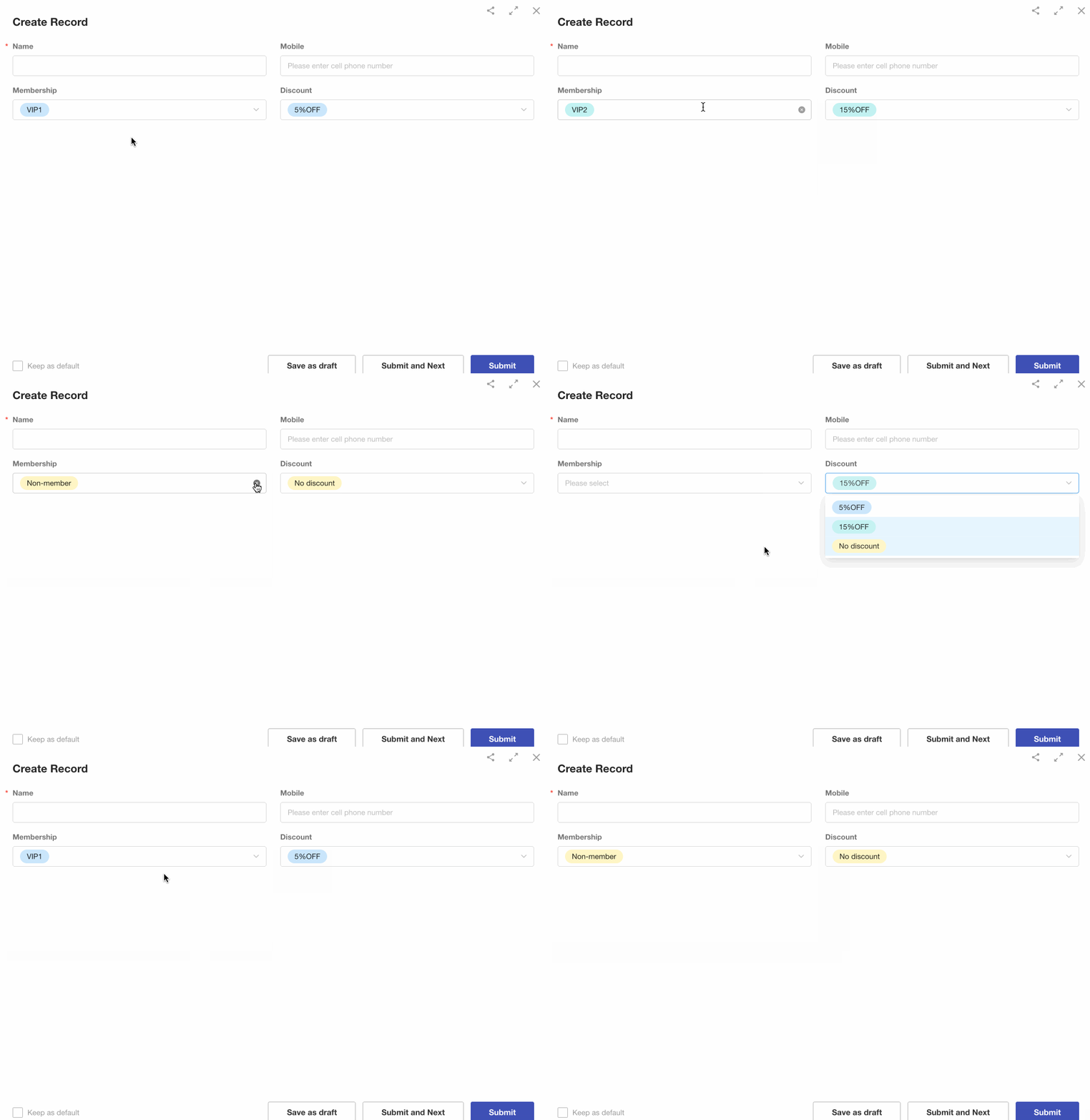
When the Membership Level field is set to:
VIP1→ the Discount field is automatically set to 5% offVIP2→ the Discount field is automatically set to 15% off- Empty or non-member → the Discount field is set to No Discount
Configure Control Events
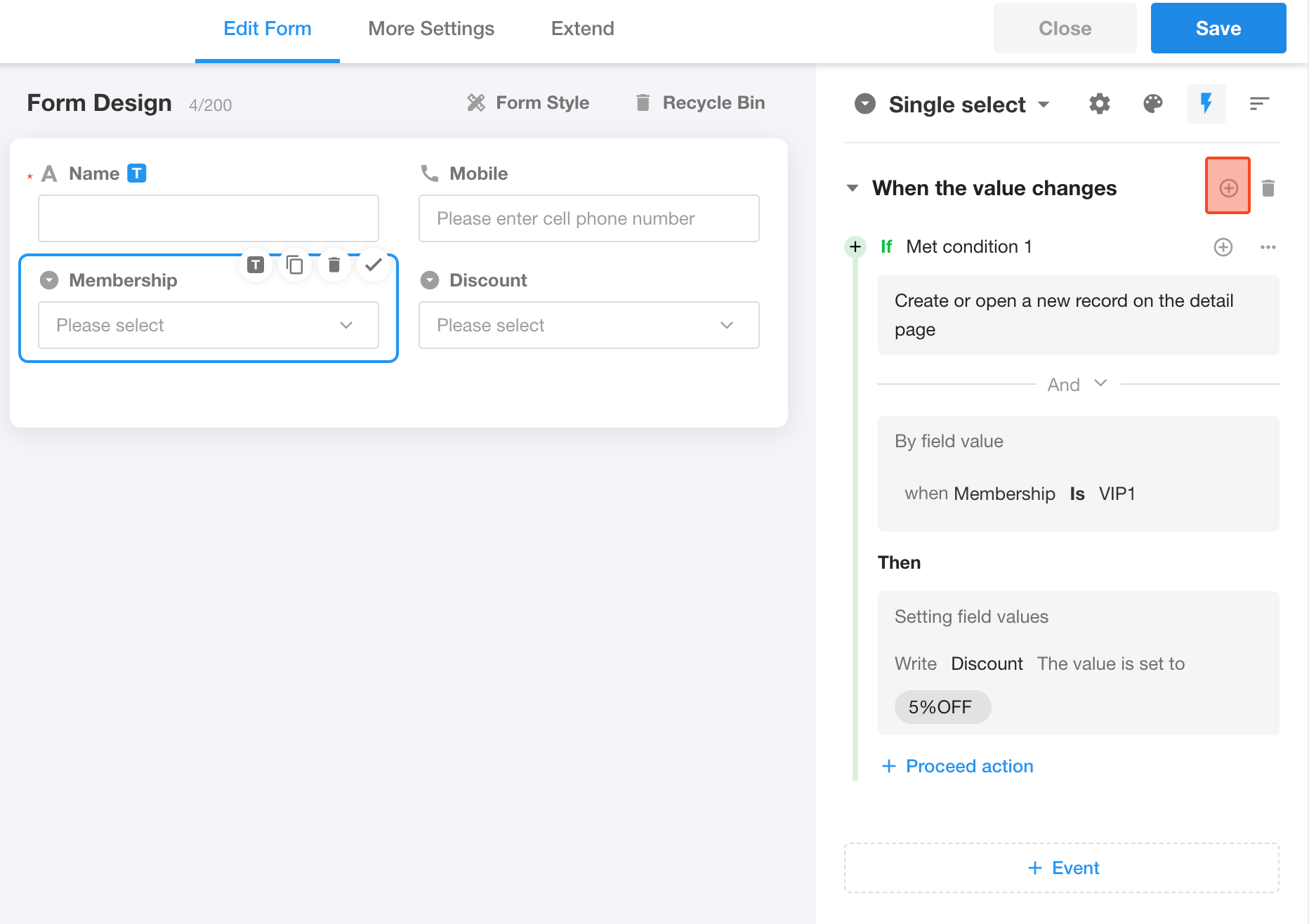
In the form editor, select a field → click Event in the right panel → click + Event to start configuring.
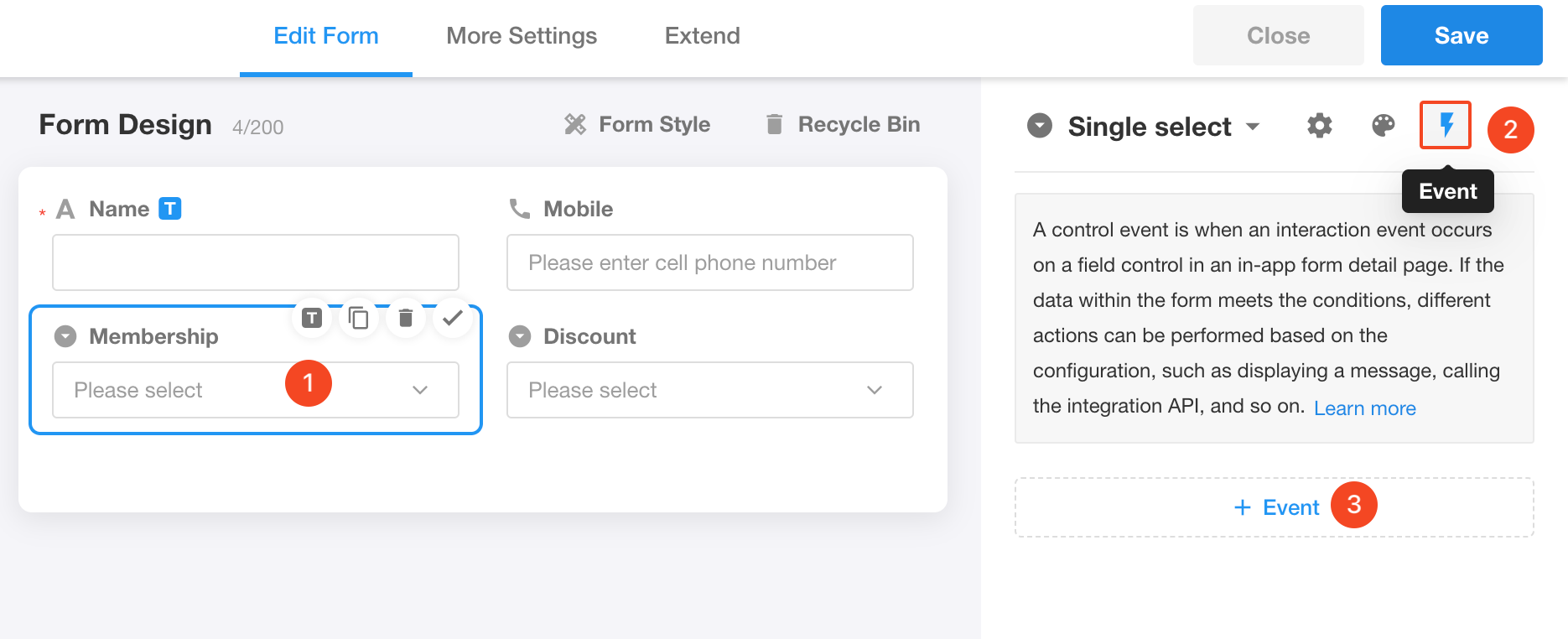
1. Select Event Type
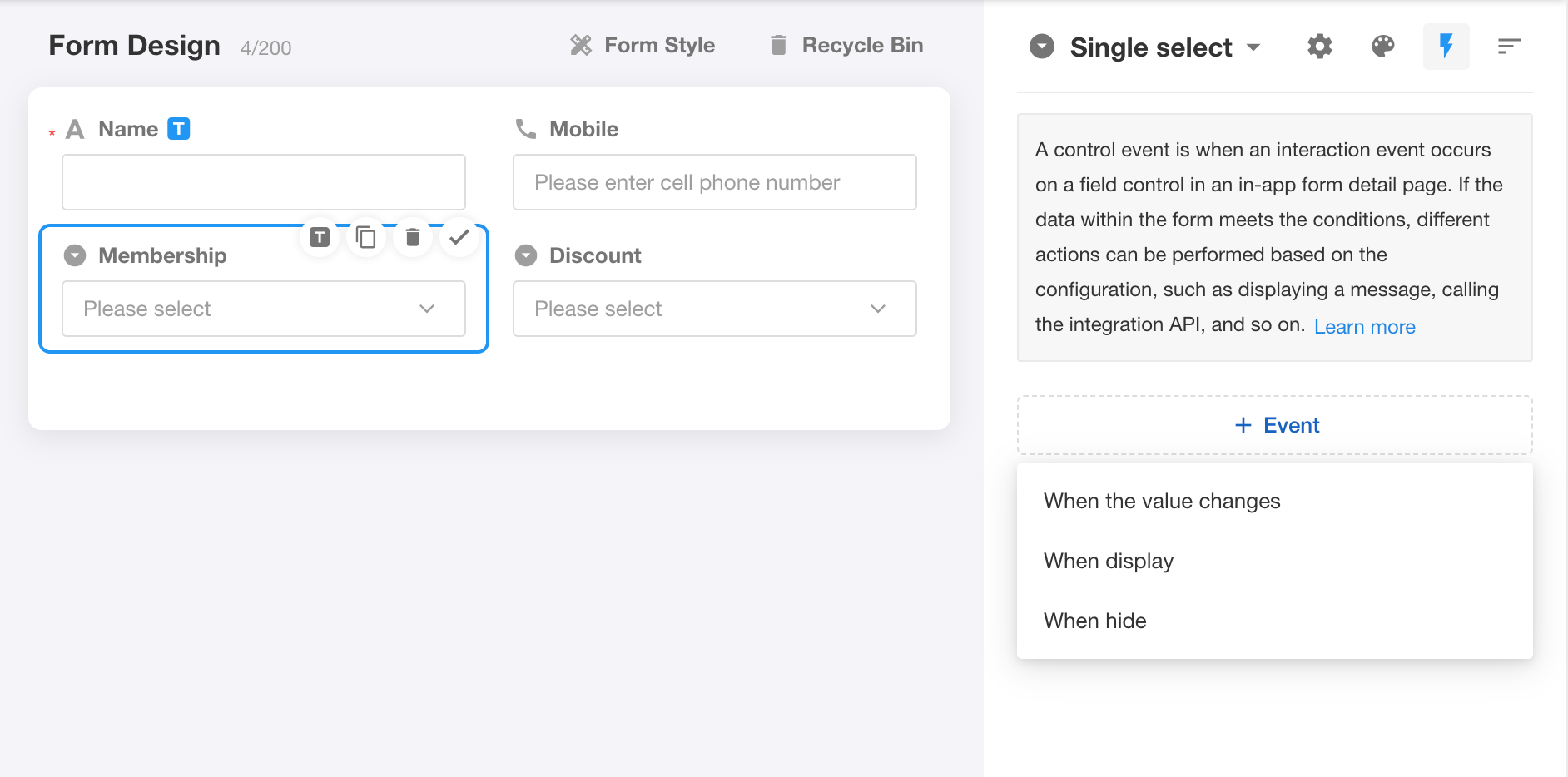
Choose When Value Changes.
In this example, both selecting a membership level and clearing the field are considered value changes.
2. Configure Conditions and Actions
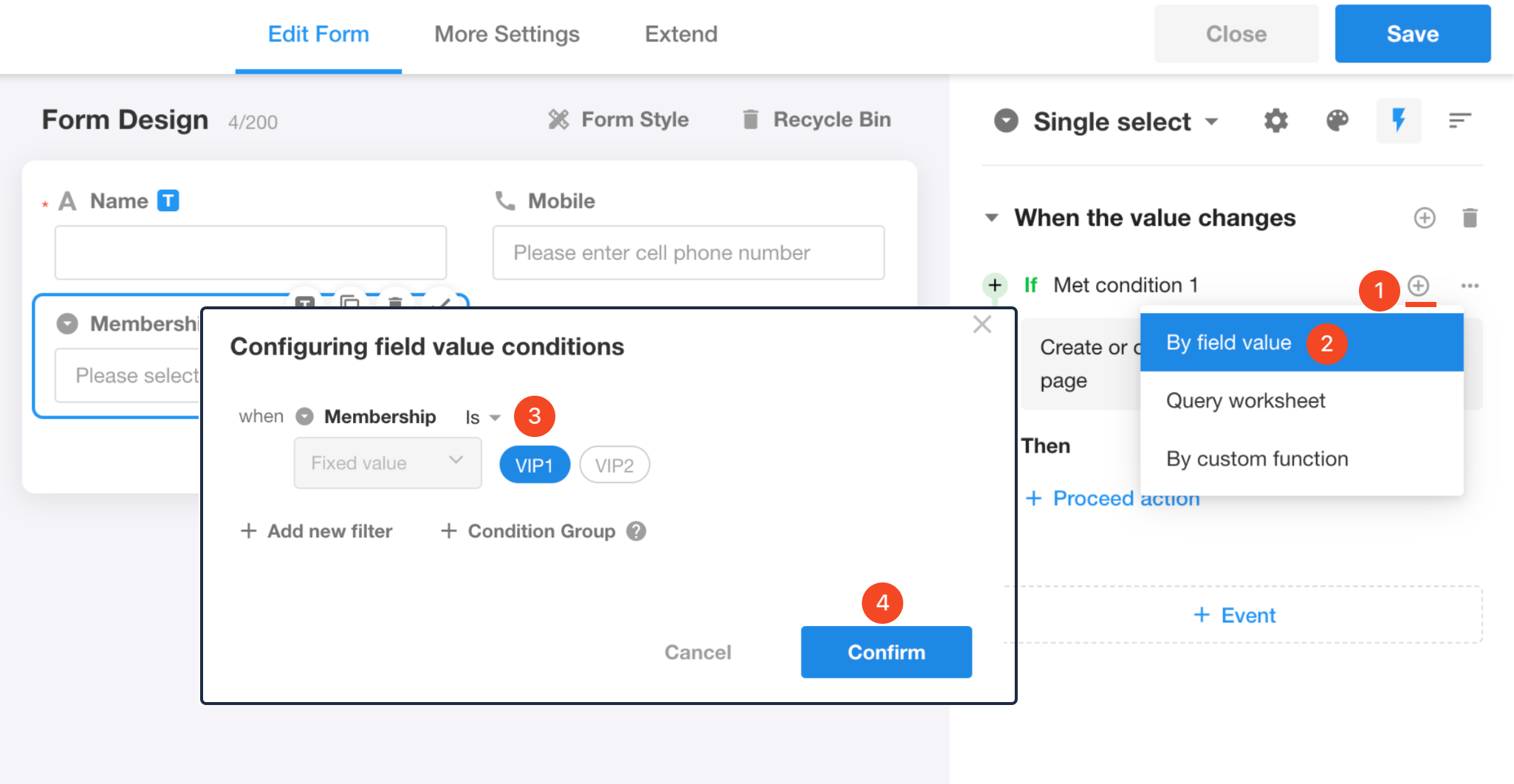
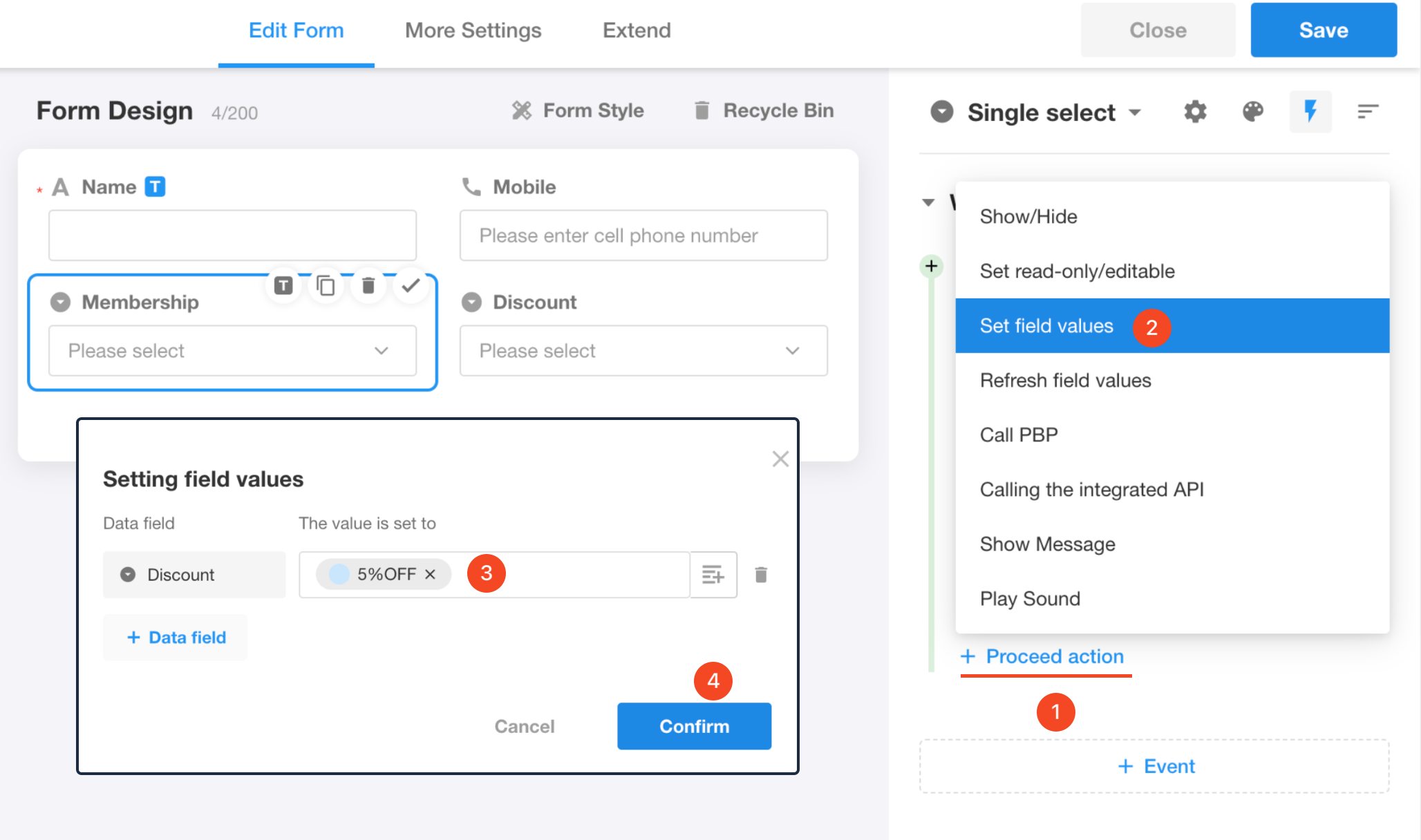
Example condition and action:
- When Membership Level =
VIP1→ set Discount =5% off
Condition configuration:
Action configuration:
3. Add Additional Conditions and Actions
Click Add Condition next to the event type to create additional condition–action groups.
Result:
Supported Event Types by Control Type
Currently supported event types include:
- When Field is Shown / Hidden
- When Field Gains / Loses Focus
- When Value Changes
- When Value Changes and Loses Focus
Different control types support different event types:
| Control Type | On Show | On Hide | On Focus | On Blur | On Value Change | On Value Change + Blur |
|---|---|---|---|---|---|---|
| Input | ✅ | ✅ | ✅ | ✅ | 🚫 | ✅ |
| Action | ✅ | ✅ | 🚫 | 🚫 | ✅ | 🚫 |
| Read-only | ✅ | ✅ | 🚫 | 🚫 | 🚫 | 🚫 |
| Selection | ✅ | ✅ | 🚫 | 🚫 | ✅ | 🚫 |
| Relationship | ✅ | ✅ | 🚫 | 🚫 | ✅ | 🚫 |
Input controls:
Text, Number (manual input), Currency, Email, Phone, Rich text, ID number
Action controls:
Number (progress/stepper), Date, Time, File, Check item, Level, Positioning, Signature
Read-only controls:
Formula, Auto-number, OCR, API Query (button), Barcode, Uppercase, Embed, Query records, Foreign field, Rollup, Free link, Section, Tab, Remark
Selection controls:
Region/City, Single select, Multi select, Member, Department, Organization role, API Query (dropdown)
Relationship controls:
Relationship, Subform, Cascading
If a field is read-only and its value is empty, the On Show event will not be triggered.
Action Types
The following actions can be triggered when an event occurs:
| Action | Description |
|---|---|
| Show / Hide | Show or hide specified fields when the event occurs (temporary; differs from business rules) |
| Set Read-only / Editable | Set fields to read-only or editable when the event occurs (temporary; differs from business rules) |
| Set Field Value | Update or clear a field value |
| Refresh Field Value | Refresh values for formula, rollup, concat fields, etc. |
| Call Packaged Business Process | Invoke an available PBP and map returned values to the record |
| Call Integrated API | Call a configured API and map returned values to the record |
| Show Message | Display a custom global message |
| Play Sound | Play a predefined sound or audio file |
| Activate Tab | Switch to a specified tab when multiple tabs are present |
Event Conditions
In addition to the trigger event, you can define conditions that must also be met before actions are executed.
Multiple condition groups can be configured under a single event.
If one condition group is not met, the system evaluates the next group until a match is found.
Supported condition types:
| Condition Type | Description |
|---|---|
| Based on Field Values | Execute actions when field values meet defined criteria |
| Based on Query Worksheet | Execute actions when query results meet expected conditions |
| Based on Custom Function | Execute actions when a custom JavaScript function returns true |
Execution Order and Priority
-
All control event actions are executed top to bottom based on their configuration order
-
When the form loads:
- All visible fields trigger their On Show events
- Execution follows the form layout order
- Within each event, actions execute top to bottom
-
If a field’s visibility changes due to business rules, it will trigger its On Show or On Hide event
-
Field properties configured directly in field settings (e.g., hidden, read-only) can be overridden by control events (e.g., made visible or editable)
-
When both control events and business rules apply to the same field (hide, show, read-only, editable):
- Event actions execute first
- Then business rules are applied with the following priority:
- Visibility: Hidden > Visible
- When visible: Read-only > Required > Editable
Was this document helpful?